All guides & tutorials
in this lesson
1
In this video tutorial we look at:
2
Key steps:
3
Check out our other videos in the series:
4
5
6
7
8
9
10
11
share
Using Draft Mode
In this video tutorial we look at Draft Mode
Requirements
In this video tutorial we look at:
- Entering Draft mode
- Changing Objects
- Moving Reservations
- Accepting changes
Key steps:
1. Introduction to Copying Reservations 0:11
- Instead of creating a schedule from scratch, you may want to copy an existing schedule into a new period
- This process can be done using draft mode.
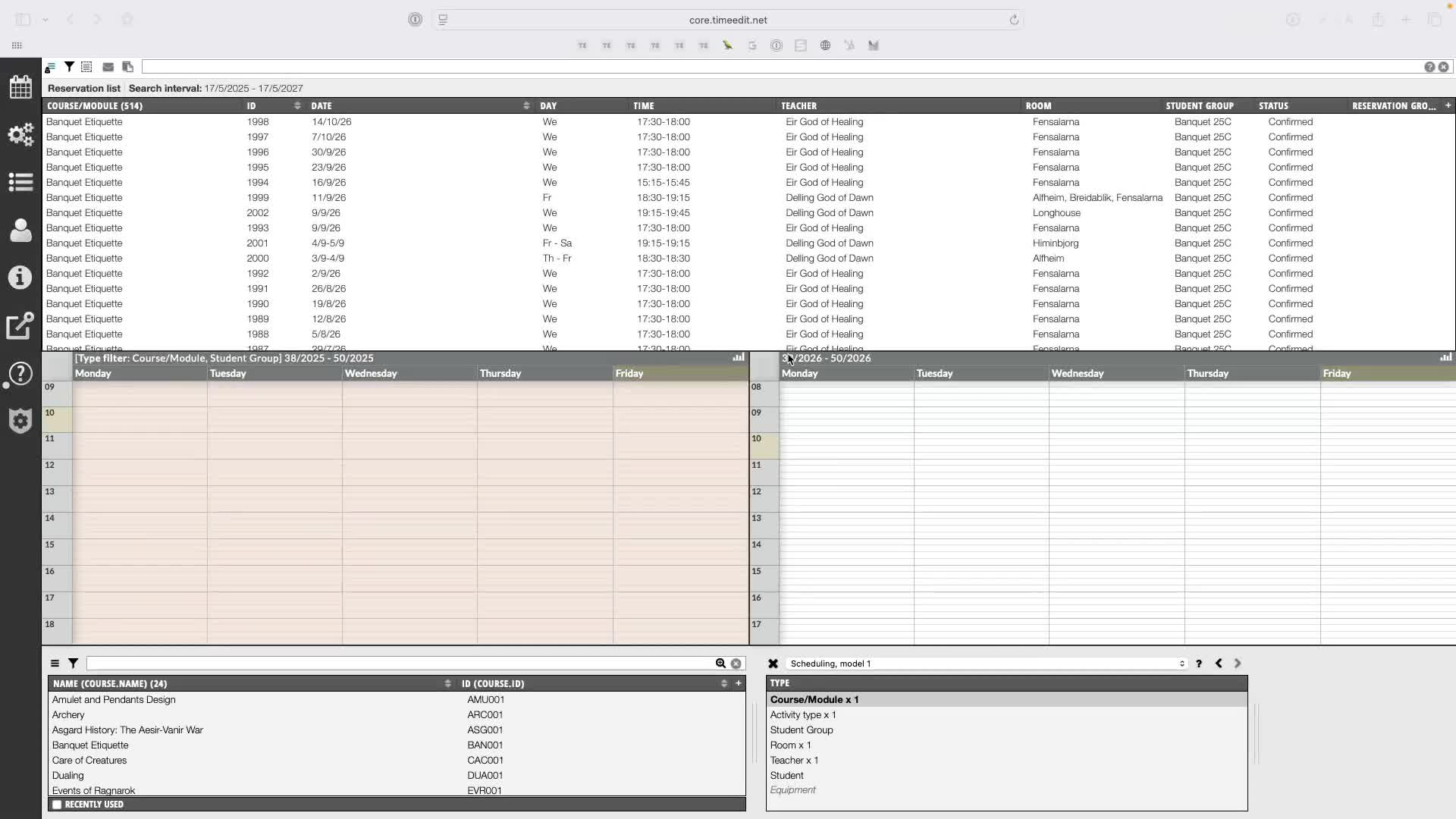
2. Setting Up Your View 0:19

- Create a view that splits your screen into three sections:
- Top Section: Reservation list to find and select the reservations to copy.
- Bottom Left Section: Weekday view for the current period you are copying from.
- Bottom Right Section: Weekday view for the future period you intend to copy reservations to.
3. Selecting Reservations to Copy 0:41

- Use the reservation list to find the reservations you want to copy.
- For example, select all reservations on a particular module.
4. Entering Draft Mode 1:06
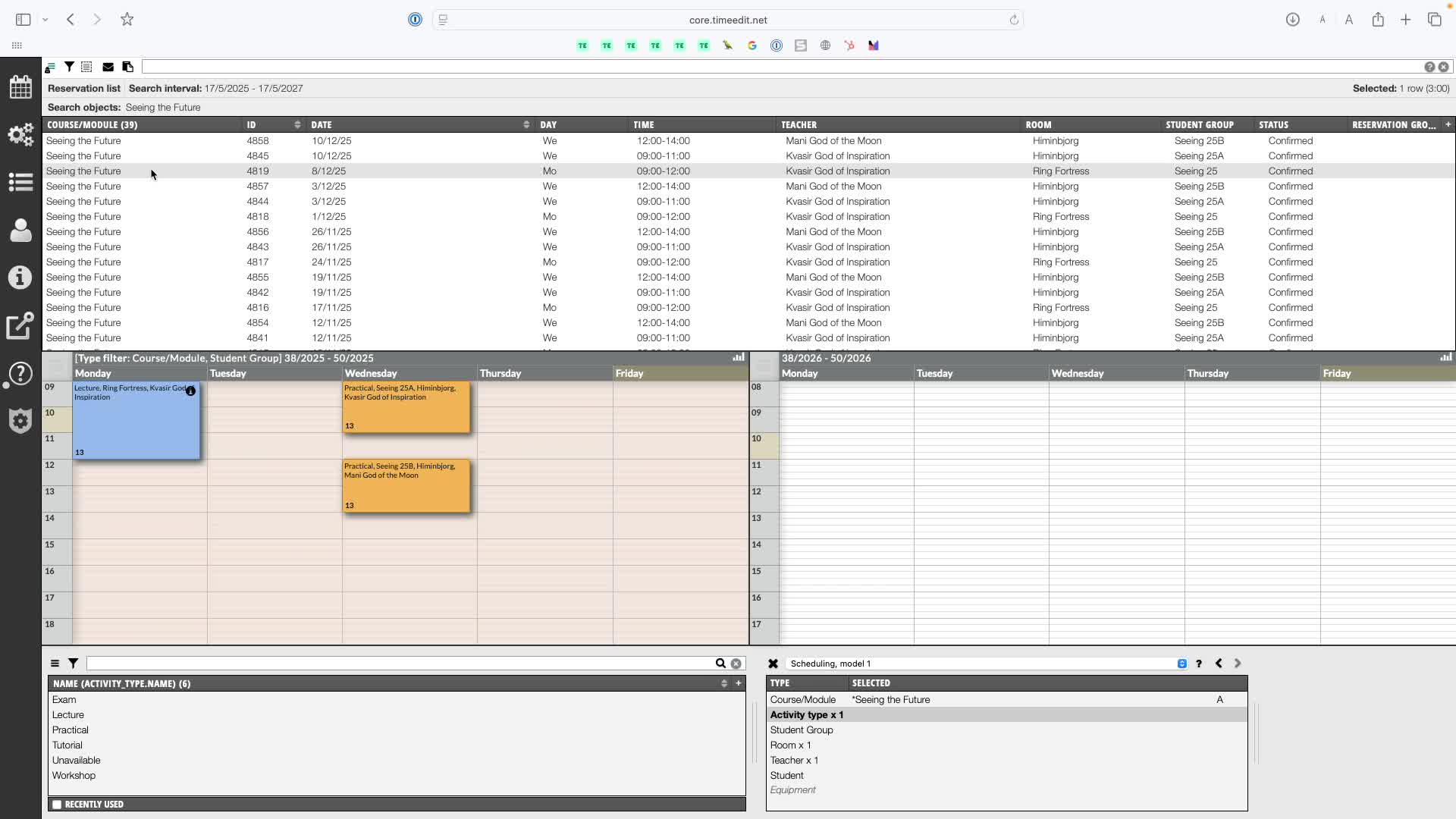
- Use the 'select all' function to select the reservations.
- Enter draft mode and give the draft a name.
5. Making Alterations to Reservations 1:27
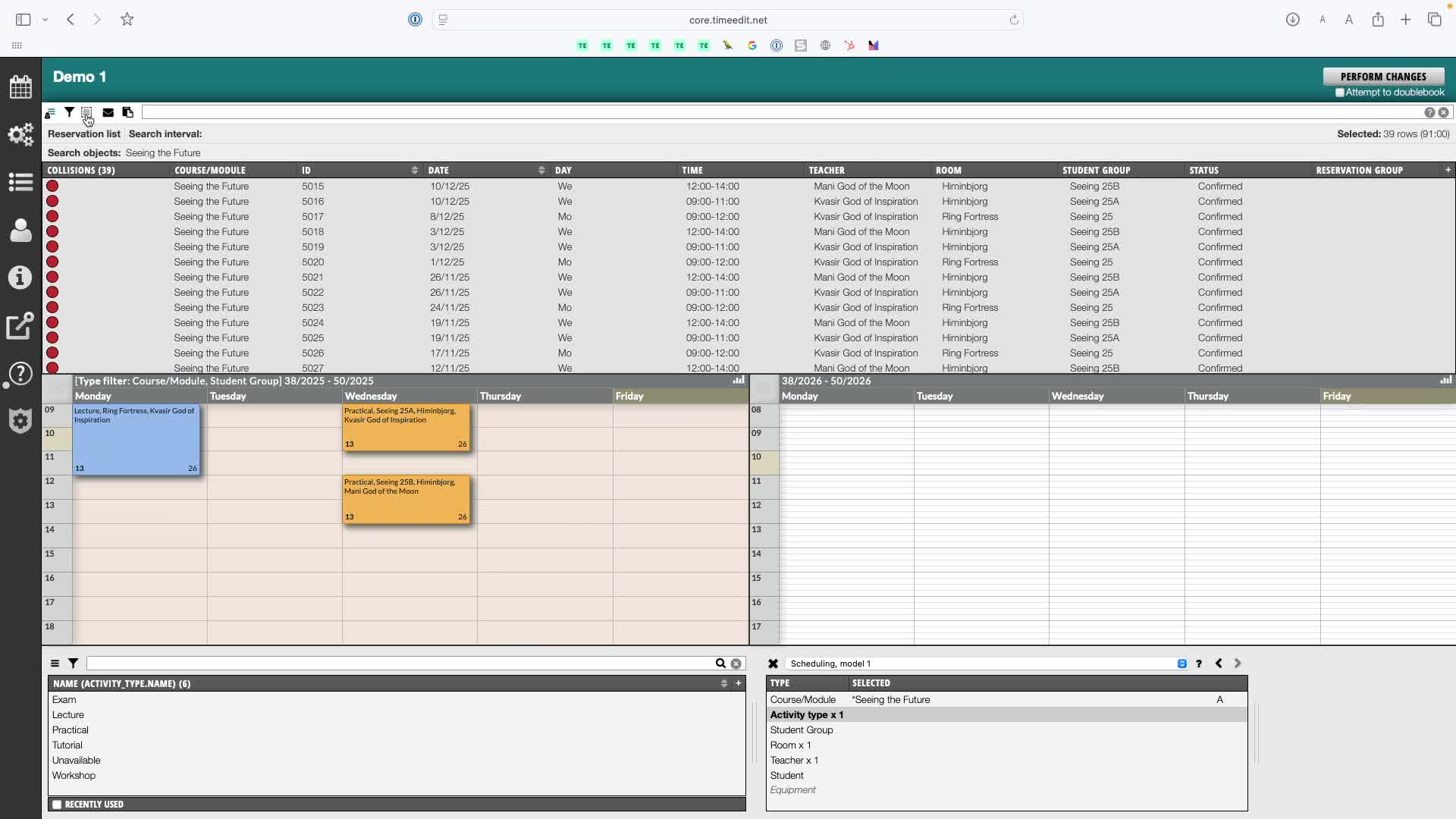
- Before moving the copied reservations, make necessary alterations. For example:
- Remove Tutors:
- Hit 'remove object' and choose the tutors to take off.
- Replace Student Groups:
- Use the 'replace object' option to select the existing student groups and replace them with new ones.
- Remove Tutors:
6. Moving Reservations to Future Period 2:47
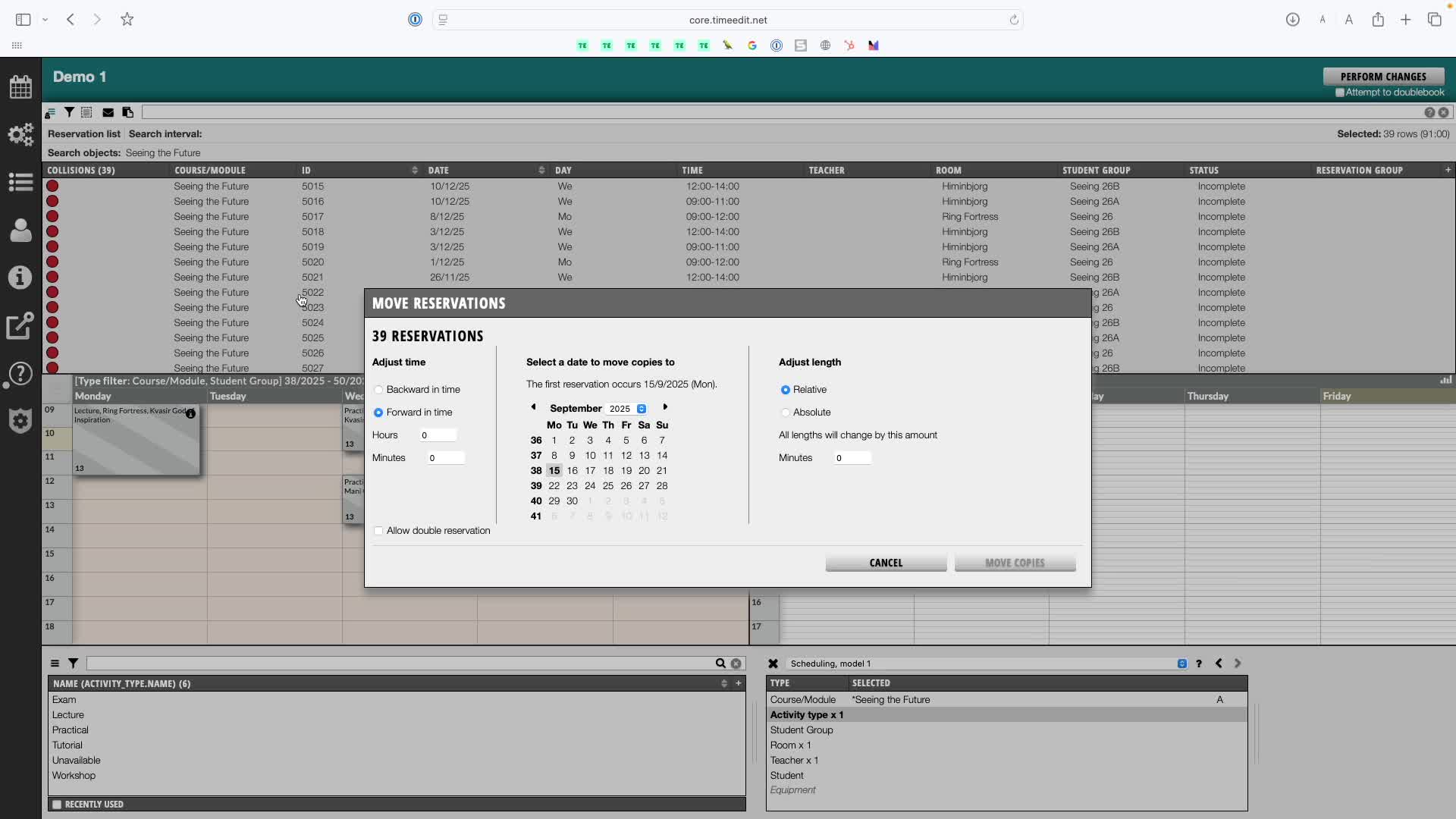
- Use the 'move reservations' option to select the future period you want to move the reservations to.
7. Final Adjustments 3:22
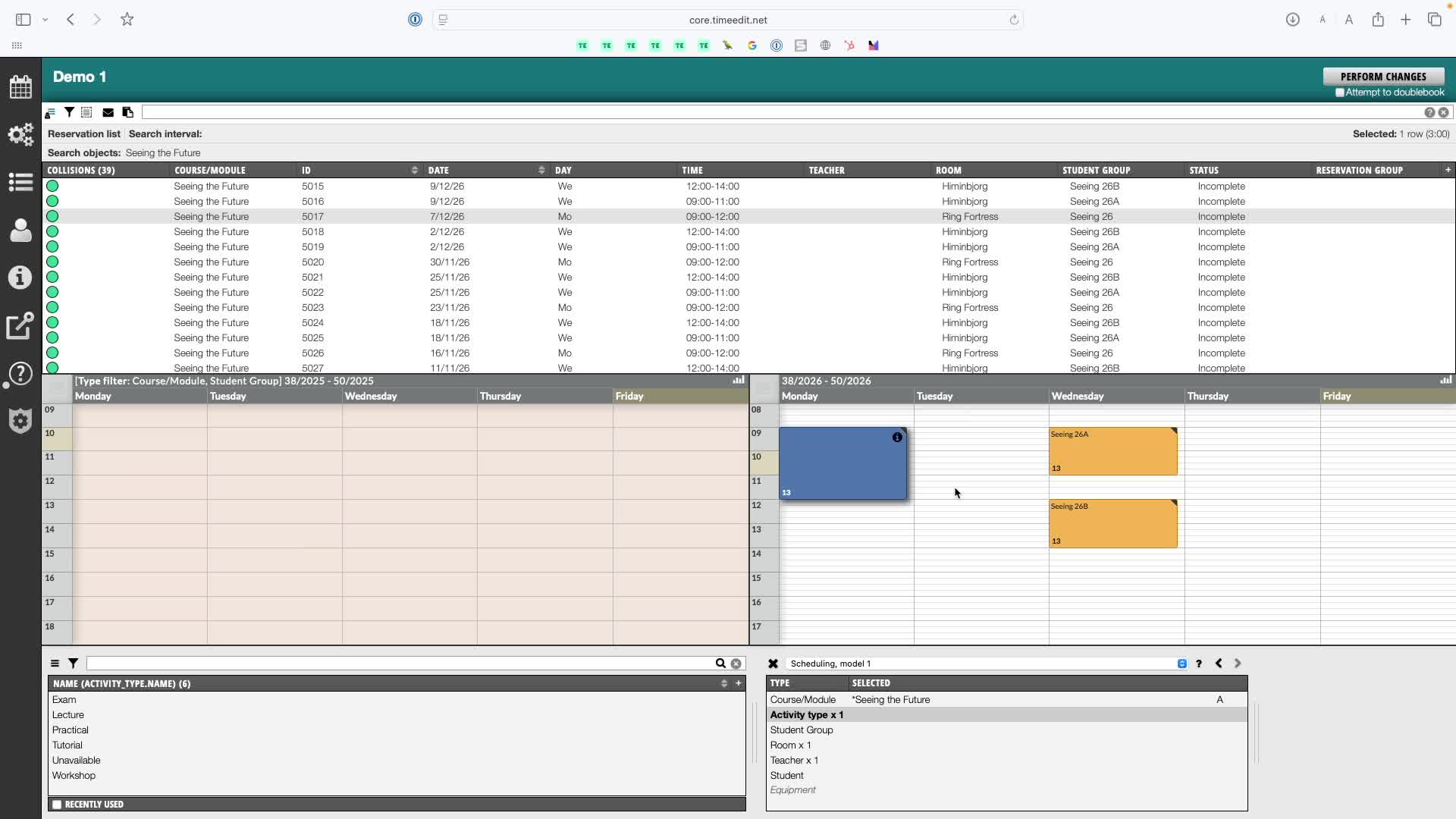
- Before confirming, make any final changes, such as moving the timing of some sessions
8. Confirming Changes 3:22
- Once satisfied with all changes, confirm the draft by hitting 'perform changes'.
Check out our other videos in the series:
- Moving on from CMIS
- Moving on from TechOne
- Moving on from Semestry
- Making a Reservation
- Changing objects on reservations
- Moving reservations
- Cancelling and restoring reservations
- Using the Reservation List
- Virtual objects on Reservations
- Reservation Modes, Data and Conflict Control
- Understanding the colours in Core
- Creating Views in Core
- The Waiting List, Conflict List and Request List